Kashida Dynamic - Arabic Stretching & Animation Tool
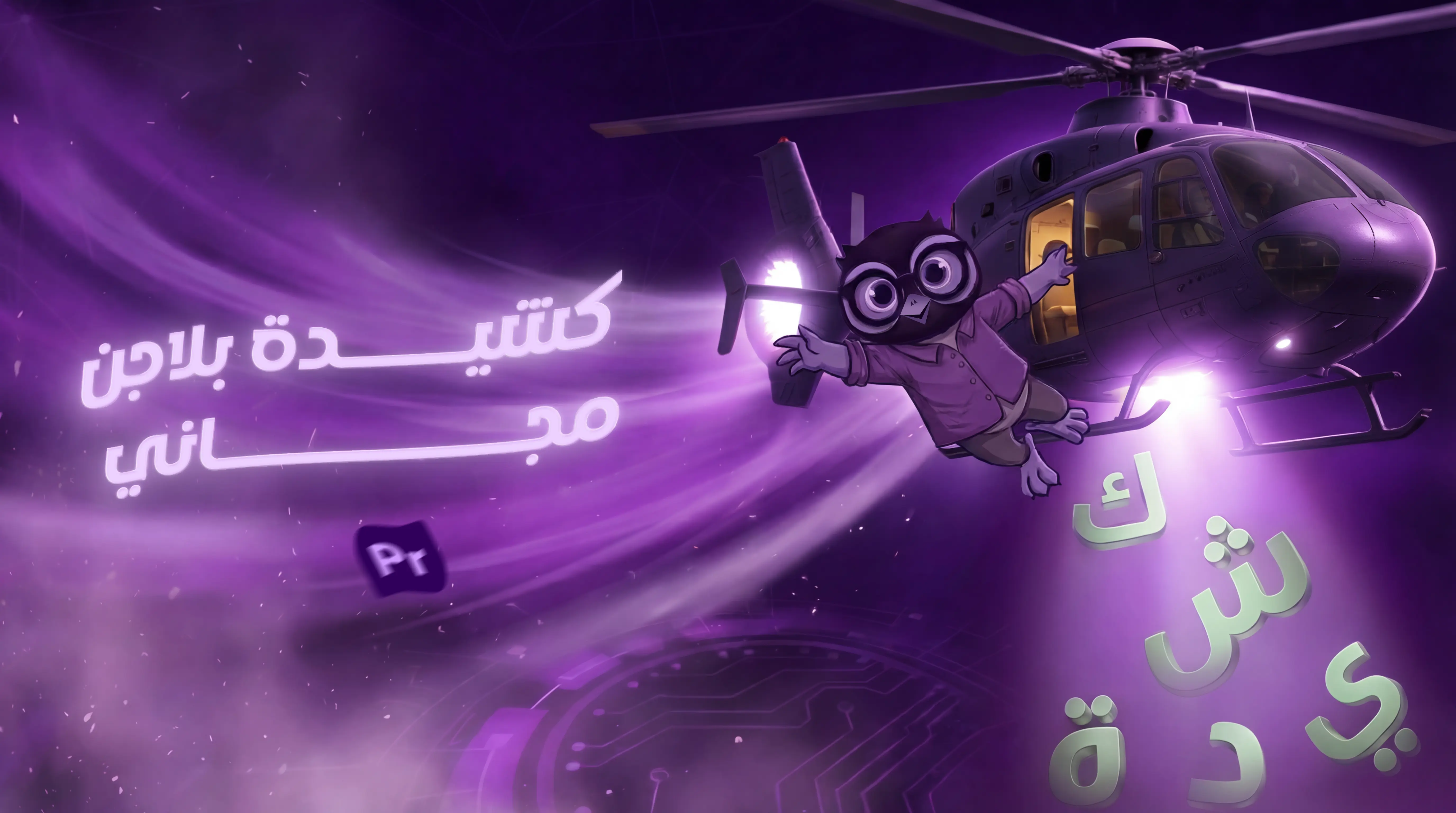
Overview
Breathe life into Arabic text with the power of "Tatweel". Kashida is the first plugin designed to animate Arabic typography through its connecting lines. Forget static fades; create mesmerizing, elastic entrances and exits where letters stretch and contract dynamically. With controls for direction, scale, and speed, Kashida turns standard headlines into fluid motion graphics instantly inside Premiere Pro .
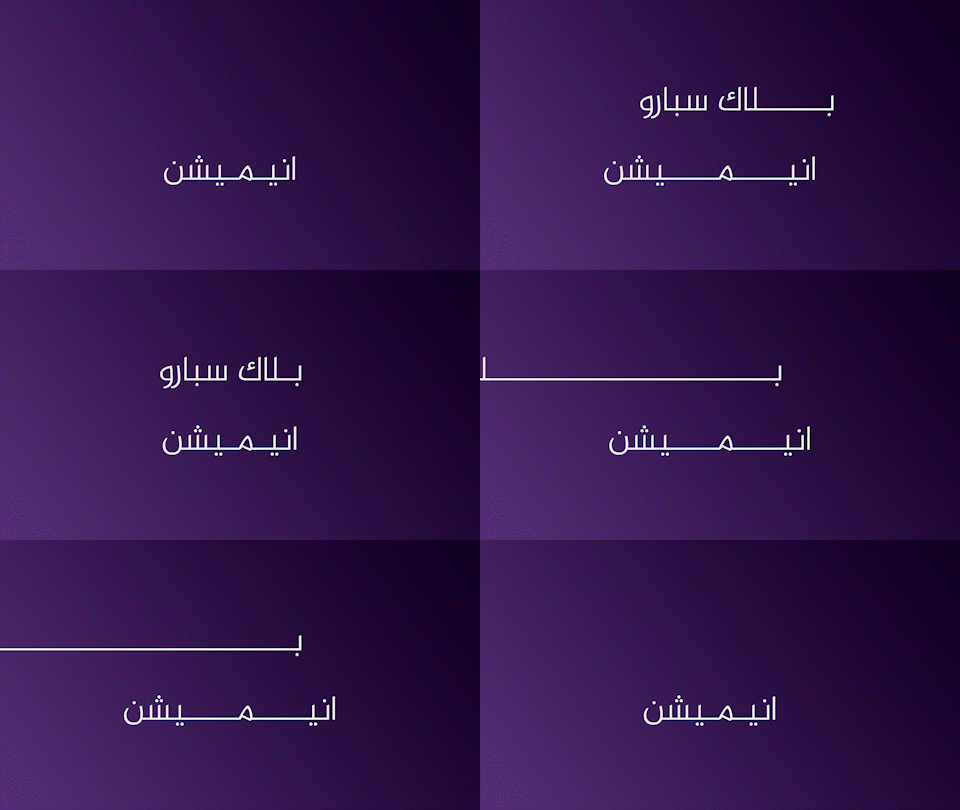
○ Key Features
● Elastic Kashida Animation: Automatically animate the "stretch" between letters for smooth In & Out transitions.
● One-Click Motion: Simply press "Kashida In" or "Kashida Out" to apply the effect instantly.
● Direction Control: Decide where the stretch flows from—Left, Right, or expanding from the Center.
● Precision Sliders: Full control over Kashida Scale (Length), Animation Duration, and Gap Fixing.
● Live Font Preview: Change fonts and see the stretching effect update in real-time.
● Seamless Integration: A dockable panel that fits naturally into your PR workspace.
Feature 1: The "Stretch" Effect (Kinetic Typography)
Fluid Text Expansion Transform static words into moving art. The "Kashida Scale" slider lets you define how far the letters stretch, creating a unique "rubber-band" effect that respects Arabic calligraphy rules. Perfect for intros, lower thirds, and cinematic titles.
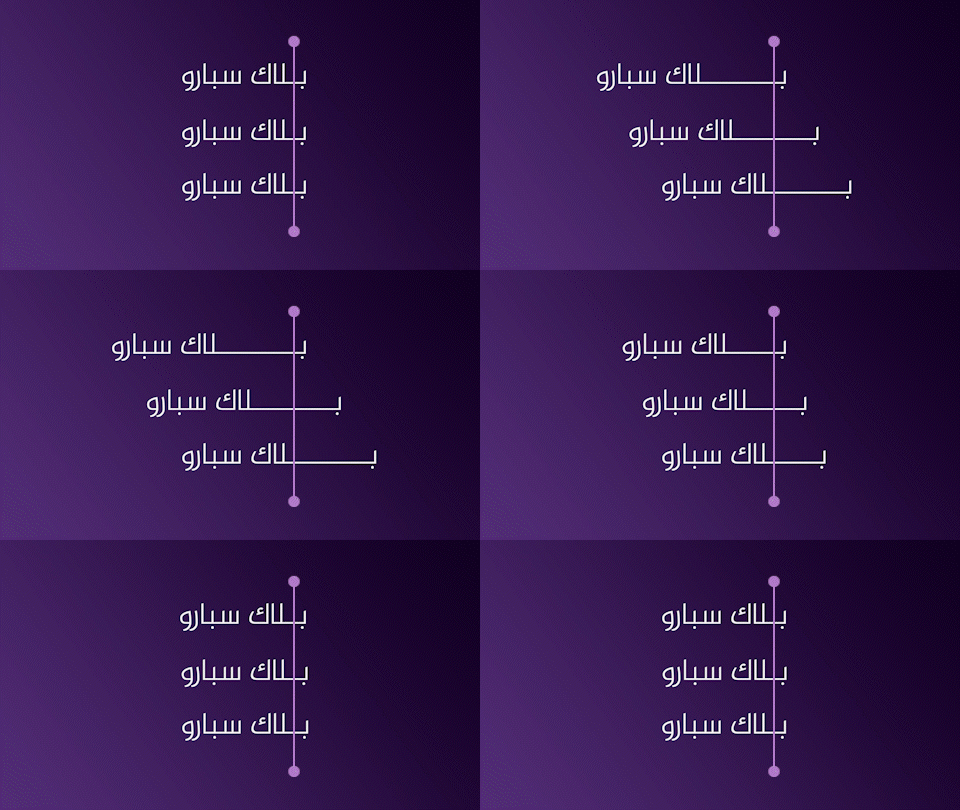
Feature 2: Directional Animation (Alignment)
Control the Flow Whether you want your text to slide in from the right, grow from the center, or stretch towards the left, the "Alignment Direction" buttons give you total control over the animation's origin.
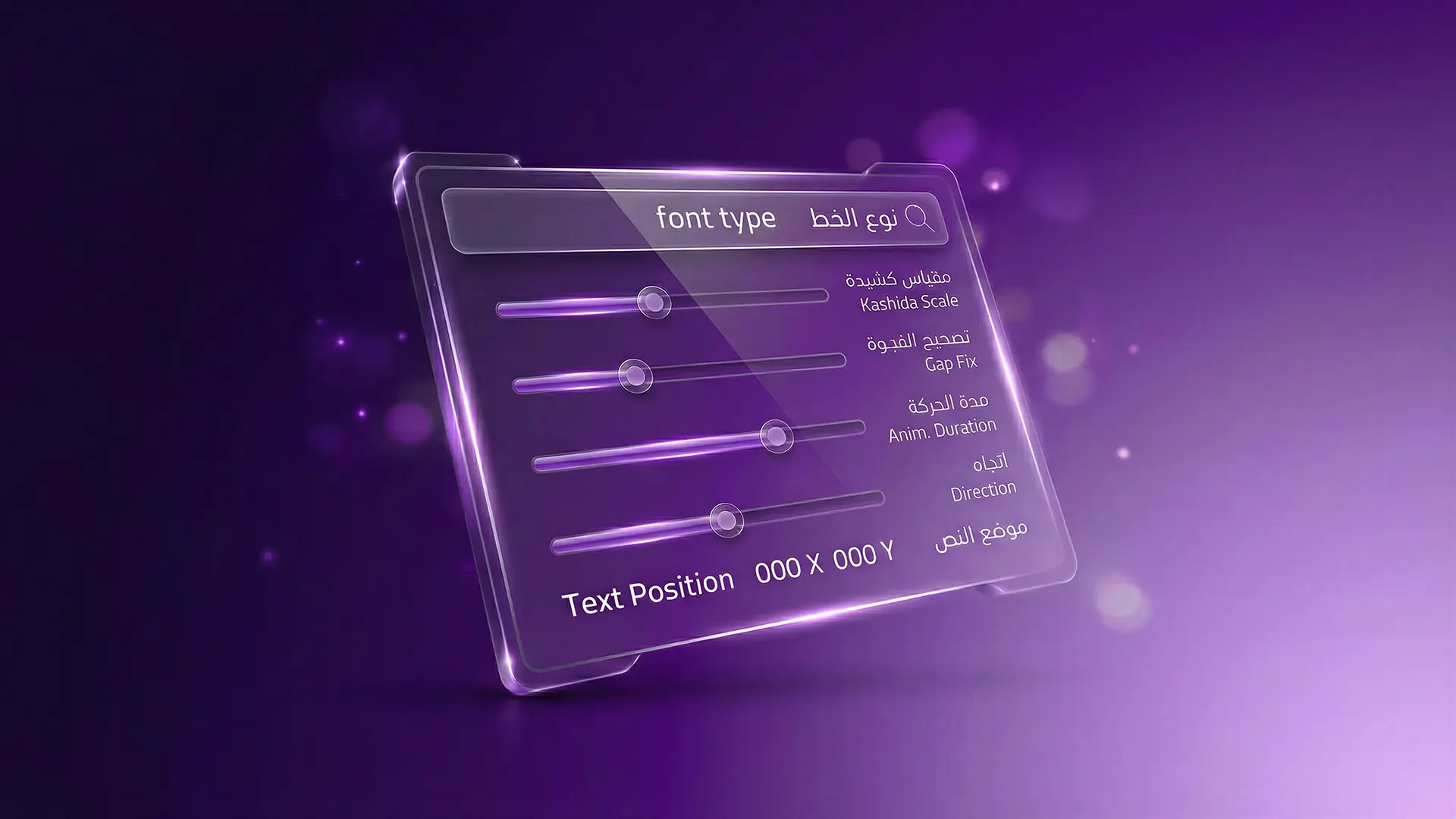
Feature 3: Complete Customization
Fine-Tune Your Look Not all fonts are created equal. Use the "Gap Fix" slider to patch any breaks in specific fonts, and adjust the "Anim Duration" to match the tempo of your video. It’s fully keyframable and responsive.
How It Works
1- Select Animation Type: Start by deciding the motion type. Click "Kashida IN" for an entrance or "Kashida OUT" for an exit.
2- Choose Direction: Set the direction of the stretch flow (Left, Center, or Right) to match your design.
3- Set Position: Use the Text Position controls (X, Y) to place your text exactly where you want it in the frame.
4- Select Font: Choose your desired Arabic font from the dropdown menu.
5- Adjust Stretch Scale: Use the Kashida Scale slider to control the intensity and length of the elongation.
6- Fine-Tune Connection (Gap Fix): If the connection between letters needs adjustment, use the Gap Fix slider using decimal values (e.g., 0.50).
The Logic:
◉ Letters Overlapping (Crowded)? → Increase the number.
◉ Letters Separated (Gaps)? → Decrease the number.
✓ Pro Tip: The default "Sweet Spot" is usually between 0.45 – 0.55.